See the details.
Subtitles, timeline markers and fine image detail all need a clear view.

At work, in a café or on the road, open the Mac you left at home from your iPhone, even over 5G.
Free on Wi-FiAcross networks: subscriptionFree Mac Host required
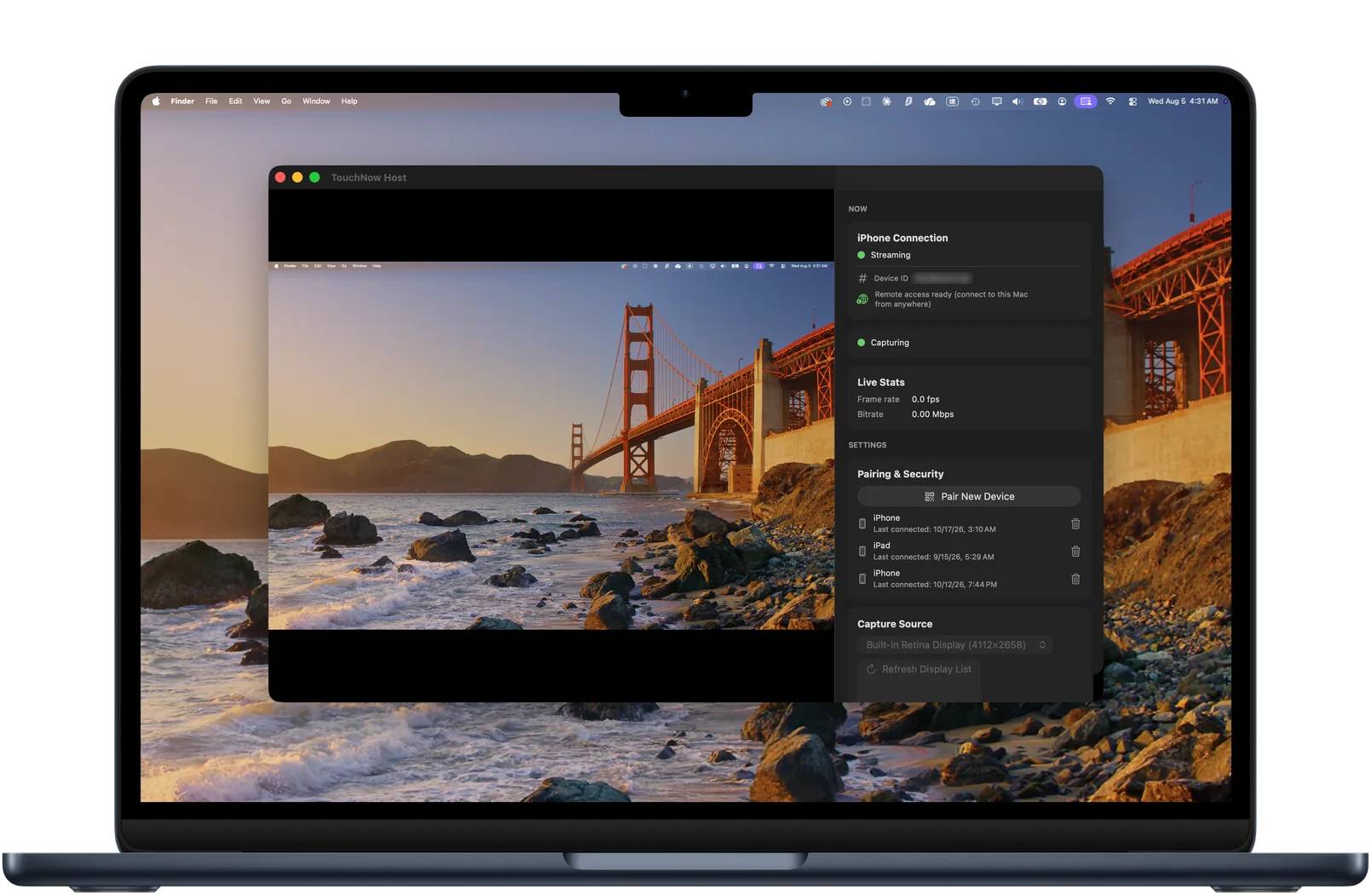
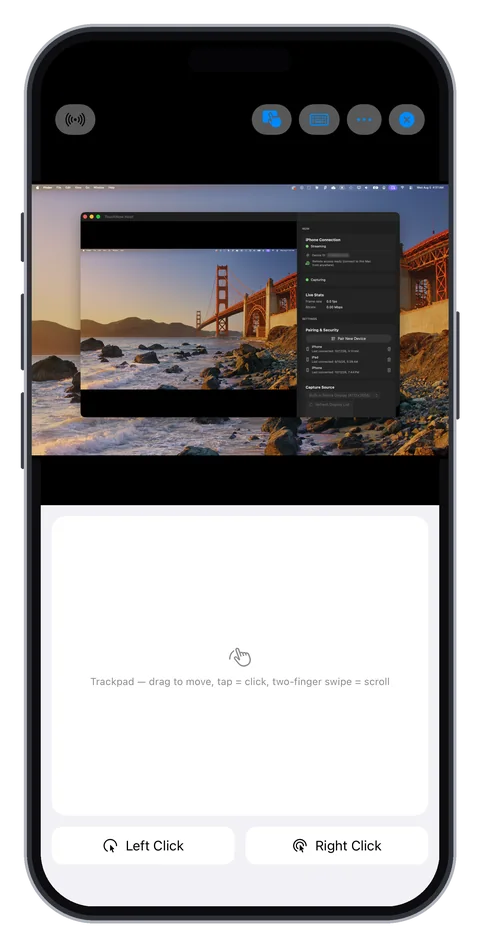
Three highlights of your remote desktop.
Remote access

Trackpad mode

Full Mac keyboard

Your view. Your choice.
Choose what you need to see, and make room for the task at hand.
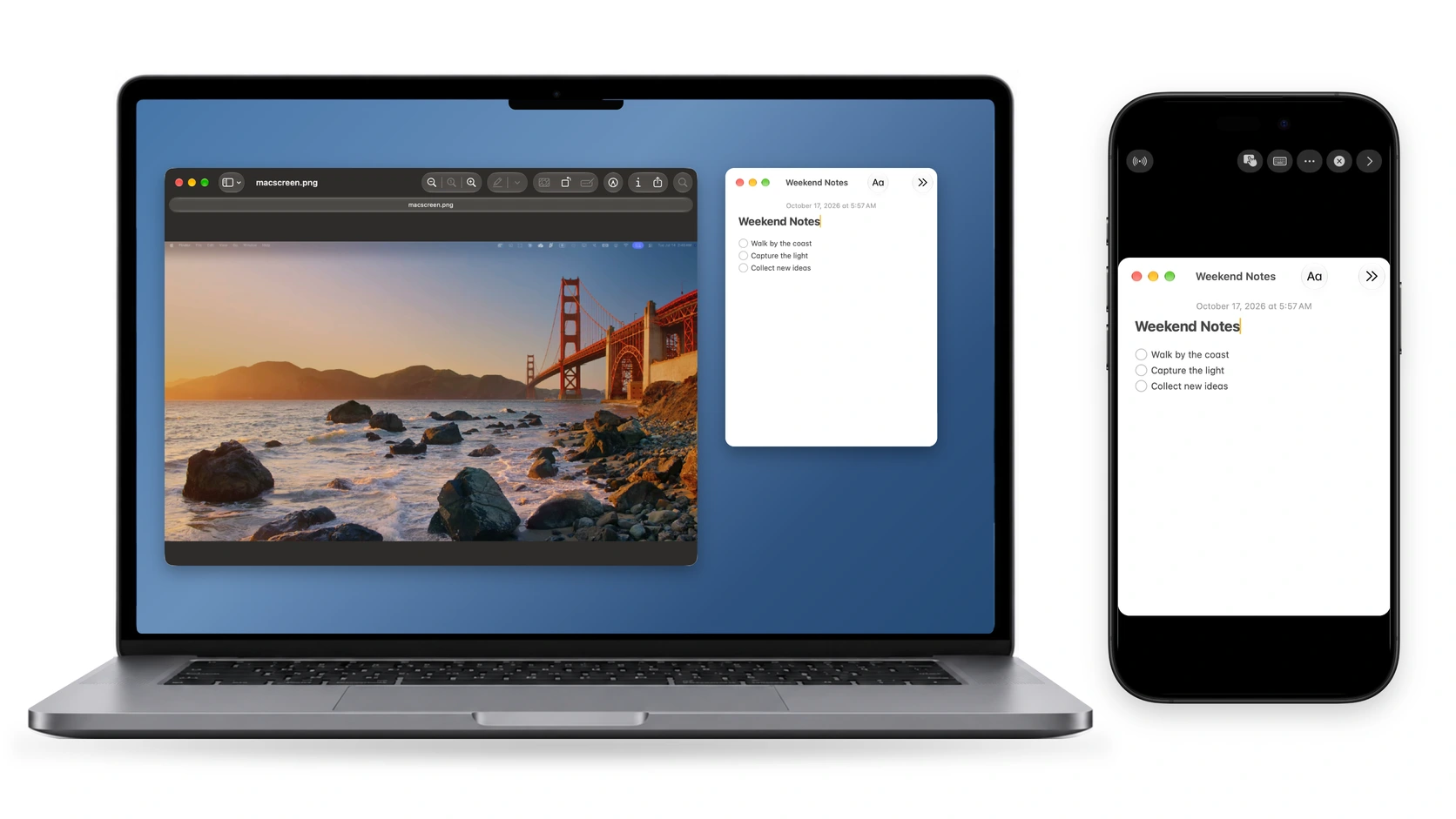
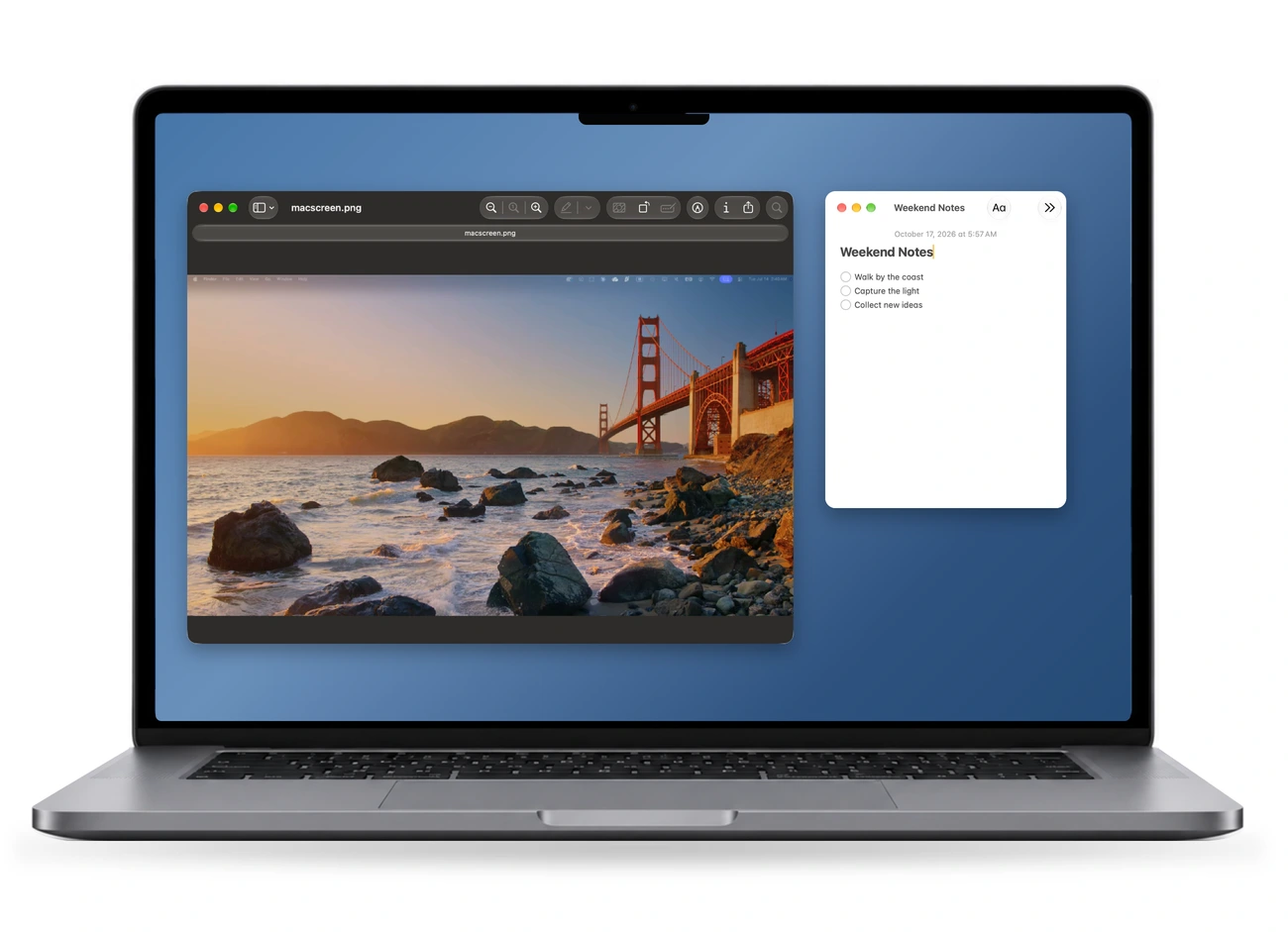
Preview and Notes sit side by side. Your work stays on your Mac.
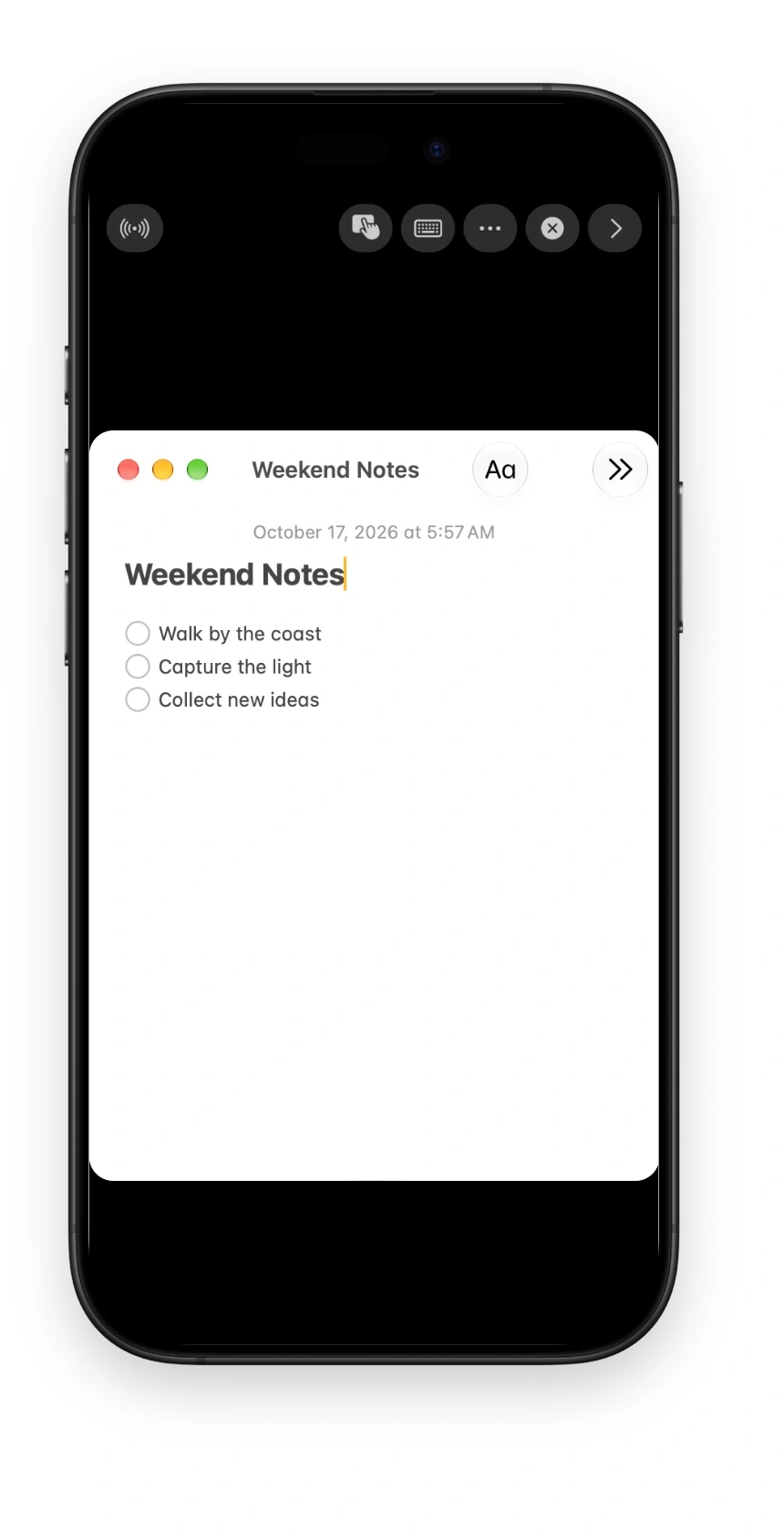
Stream only the selected Notes window. The photo and the rest of the desktop stay out of the iPhone view.
Return to the iPhone Home Screen and the stream continues in Picture in Picture. A Live Activity on the Lock Screen shows the ongoing connection.
Explore screen modes ›Video editing. From a distance.
Preview moving footage while keeping timeline and subtitle details in view. Clarity helps you inspect the picture; smooth playback helps you judge movement. Adjust Quality to suit the connection.
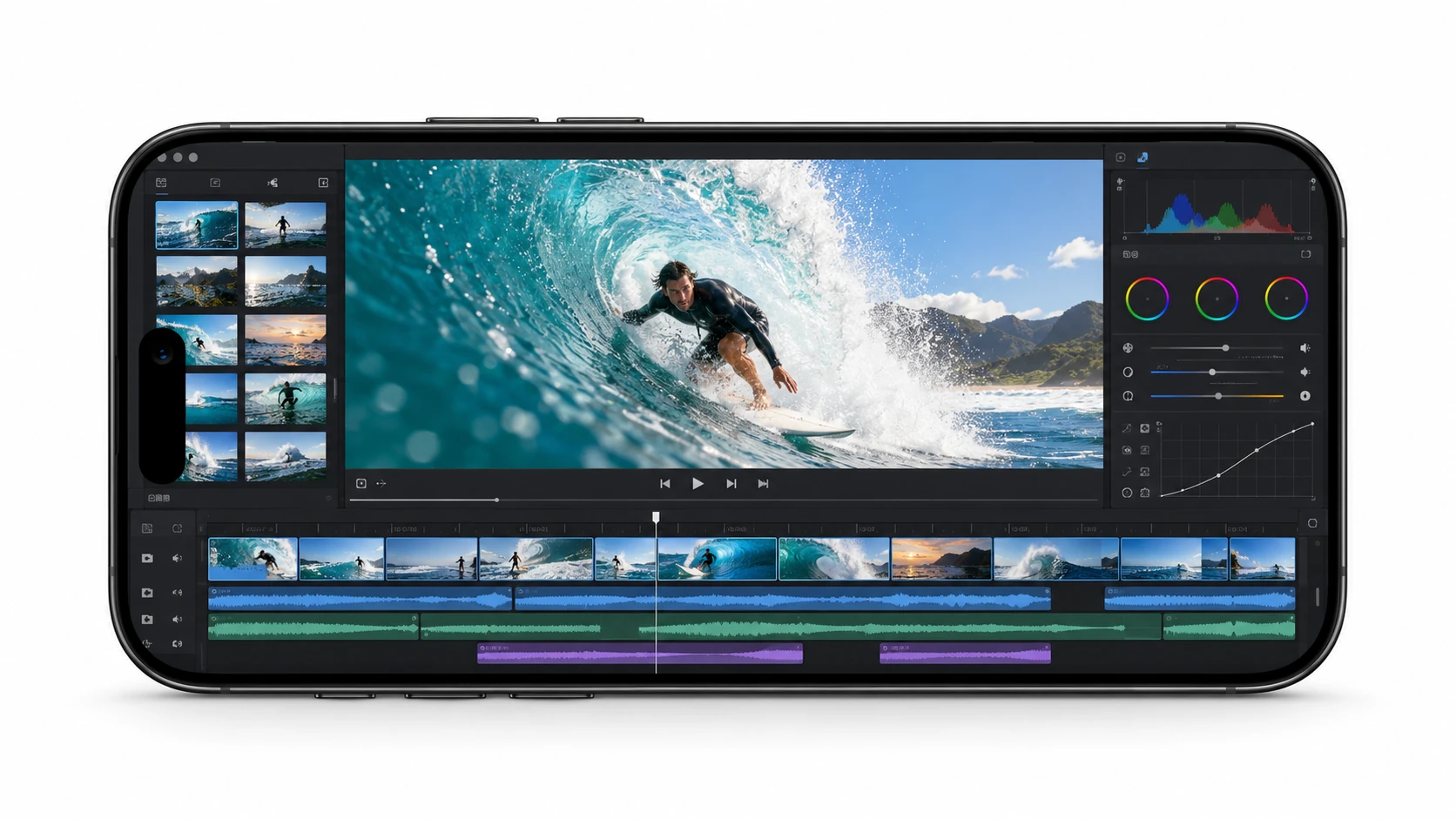
Subtitles, timeline markers and fine image detail all need a clear view.
Review camera movement and transitions in motion, where timing matters.
When the network changes, use Quality to adjust the balance between clarity and smoothness.

Measured 2026-09-08: MacBook Pro (M2 Pro) ↔ iPhone 16 Pro, 5 GHz Wi-Fi 6 at −46 dBm, direct peer-to-peer with no relay. 320 readings over 10 minutes while streaming 1920×1240 at 54 fps — median 5 ms, p95 9 ms. Network round trip only, not glass-to-glass. Turn on Performance Info in the app to measure your own.
See how many frames arrive each second, especially when the picture is moving.
Read the network round trip separately from capture, encoding, decoding and display time.
The buffer adapts to network conditions, balancing steadier playback with waiting time.

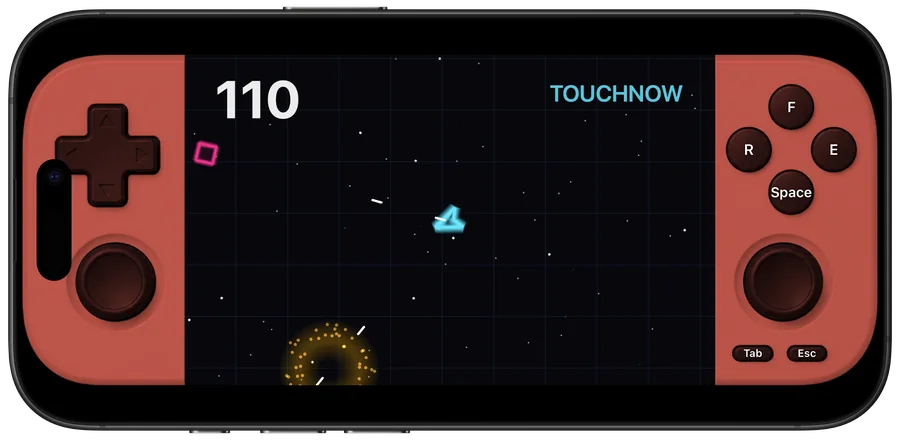
Customize virtual sticks, buttons and key combos, or connect a physical controller.
See how it works ›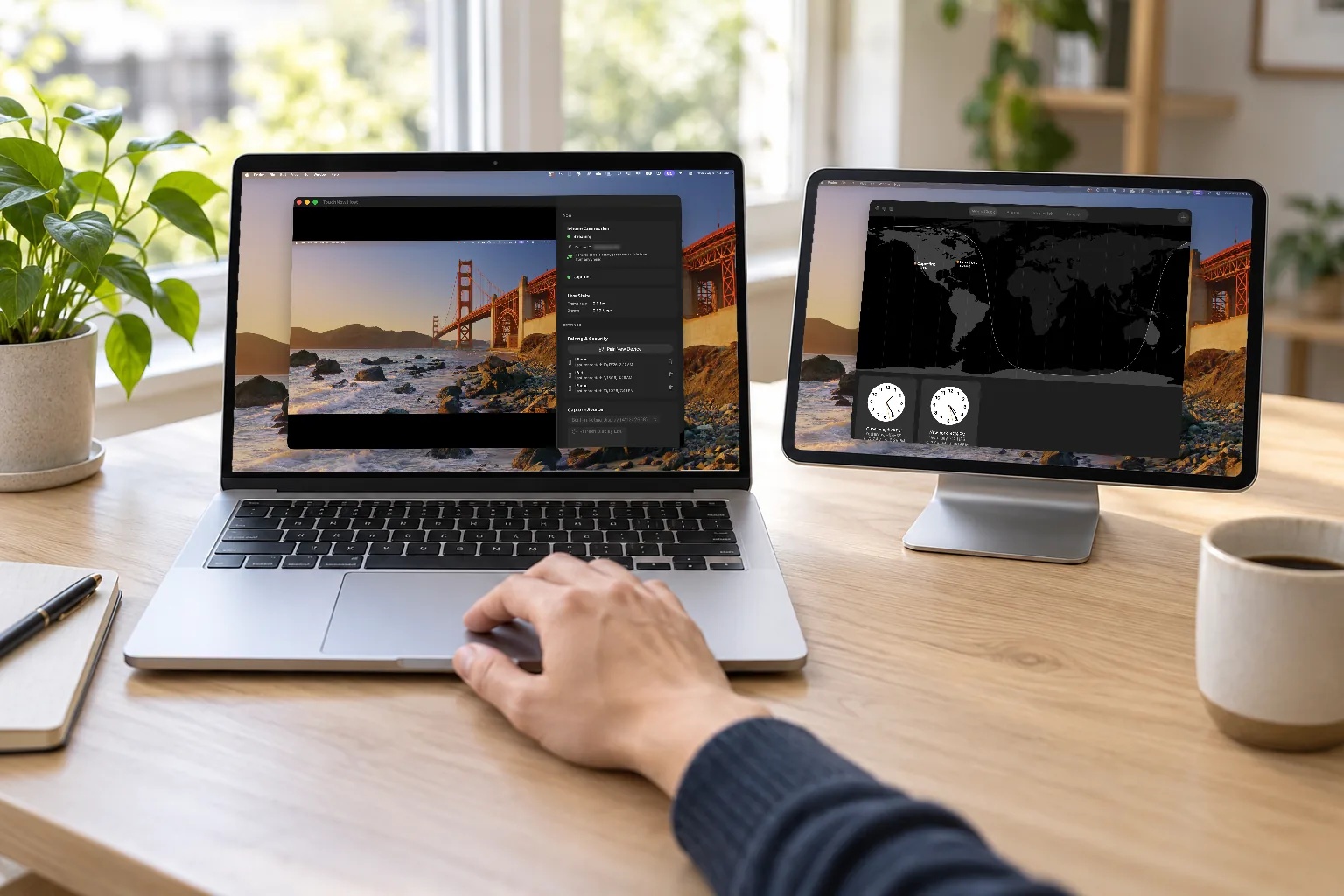
Use your iPhone or iPad as a separate Mac desktop and drag windows onto it.
See how it works ›Get started
The free Host on your Mac. TouchNow on your iPhone or iPad.
Install the free TouchNow Host on your Mac. Allow Screen Recording and Accessibility.
Get TouchNow on your iPhone or iPad, then scan the QR code shown on your Mac.
Connect on the same Wi-Fi. Use the trackpad, direct touch and full keyboard to control your Mac.
iPhone / iPad: iOS 15+Mac: macOS 13+
See the pairing guideYou stay in control
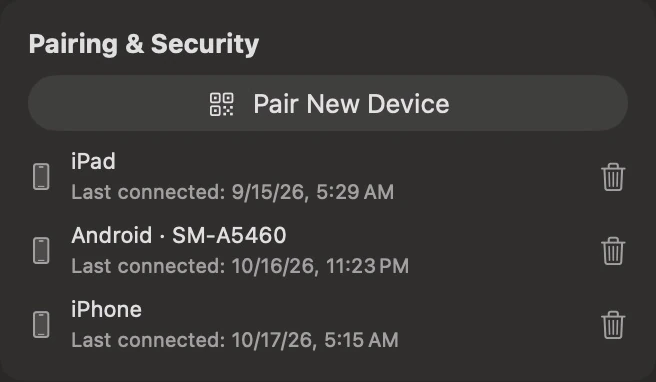
Paired devices are clearly listed on your Mac. Revoke access here when you need to. During remote control, the Mac also displays a persistent red banner.
No account required. The stream is end-to-end encrypted, and TouchNow does not store your screen content.
After you disconnect on the Mac, reconnection is blocked for one minute to prevent an immediate return.
Revoke a device in Pairing & Security to end its active connection. It must pair again before connecting.
Your Mac keeps a local record of the device, start time and duration. End-to-end encryption protects the stream.
Keep the Mac powered on, online and running TouchNow Host before you leave. For longer trips, connect power and enable the setting that prevents automatic sleep when the display is off. Wake support depends on hardware, power and network settings; waking from outside is not guaranteed.
Read the full guide ›Yes. Ask the person at the Mac to copy the encrypted pairing code from Host and send it to you, then share the six-digit PIN separately. Paste the code on iPhone and enter the PIN. The code expires after 10 minutes.
Read the full guide ›iPhone and iPad need iOS or iPadOS 15 or later. The Mac needs macOS 13 or later, on Apple Silicon or Intel. Install the free TouchNow Host separately from this website.
Read the full guide ›Yes. Type with the iPhone system keyboard. TouchNow sends the committed text to the Mac, so you do not have to reproduce each Mac input-method keystroke on the phone.
Read the full guide ›